
Room booking: Servio HMS
- What you get:
- the agent names free cottages and rooms with the total for the whole stay, suggests the nearest free dates and, if you allow it, creates the booking itself and tells the caller its number.
- Before you start:
- a hotel in Servio HMS with the booking module (Reservation API), project admin rights in Voice Agent and a “Voice Agent” campaign.
1. Get access in Servio
Ask Servio support or the hotel's administrator for three values:
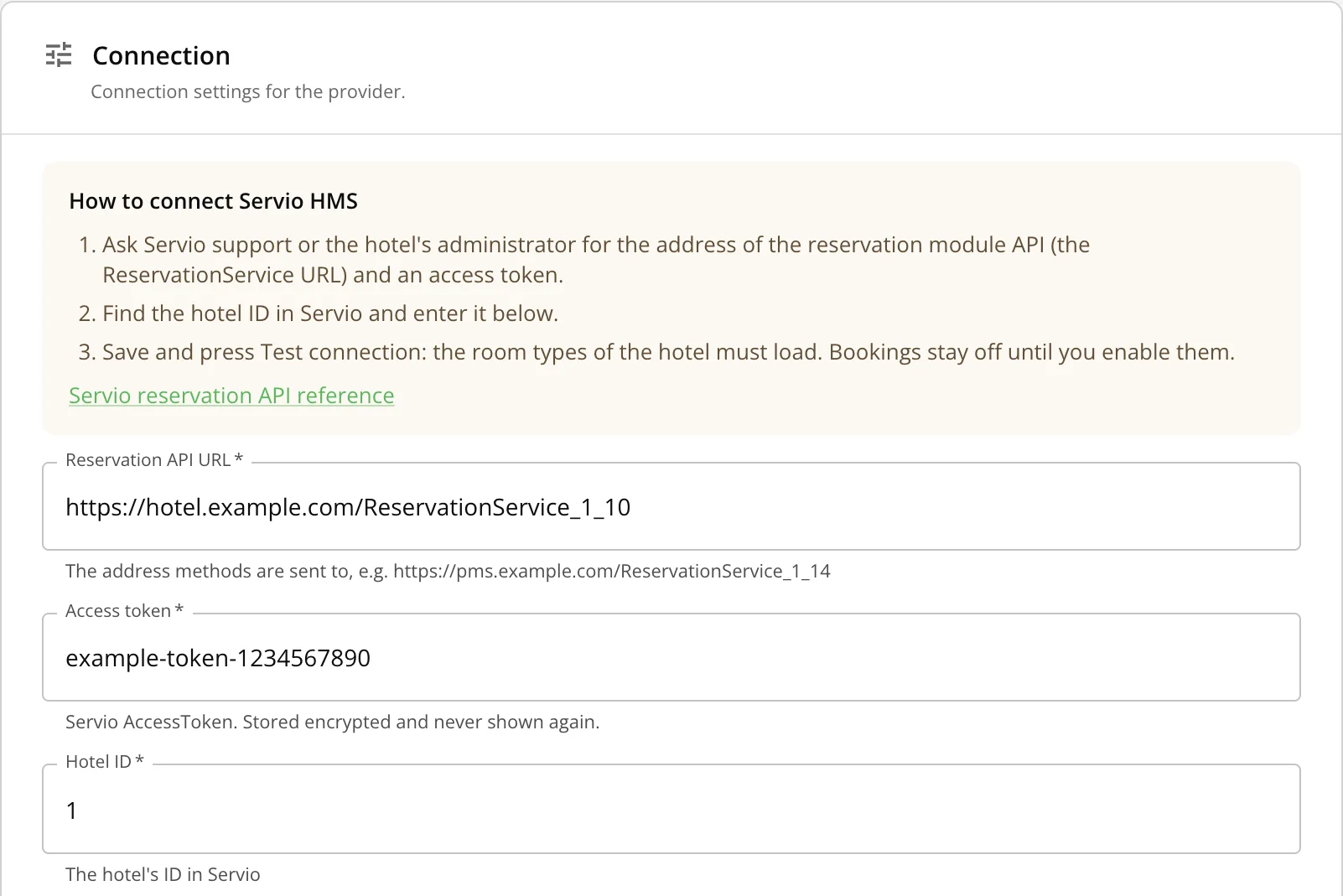
- the reservation API URL: the address of the ReservationService module, for example https://pms.example.com/ReservationService_1_14;
- the access token (AccessToken);
- the hotel ID in Servio. If the hotel uses cashless payment or a waitlist, also the company ID.
2. Connect the integration
- 1Left menu → “Integrations” → “Ready-made” → the “Booking” tab → the “Servio HMS” card → “Connect”.
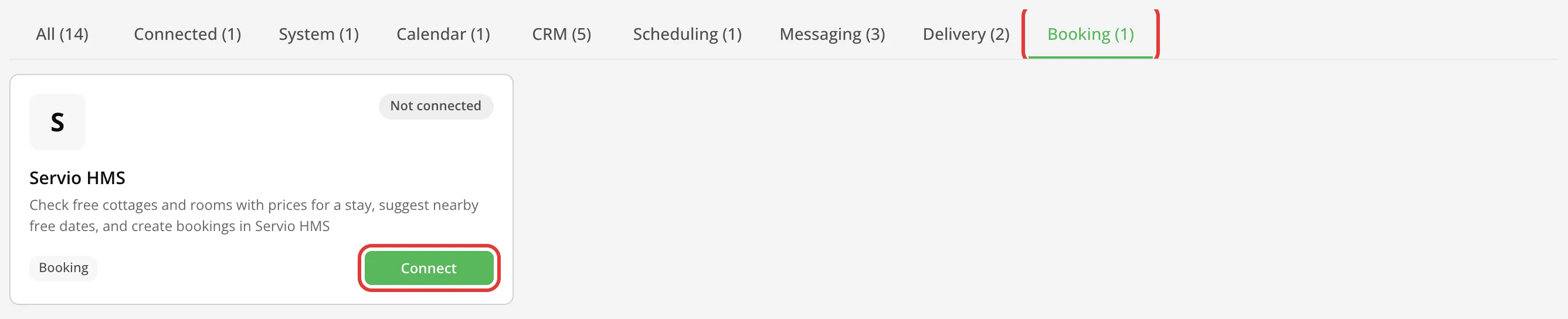
Servio HMS card - 2In the “Connection” block fill in “Reservation API URL”, “Access token” and “Hotel ID”.
Connection fields - 3Click “Save”.
- 4Click “Test connection”. If everything is right, you will see “Connection works”.
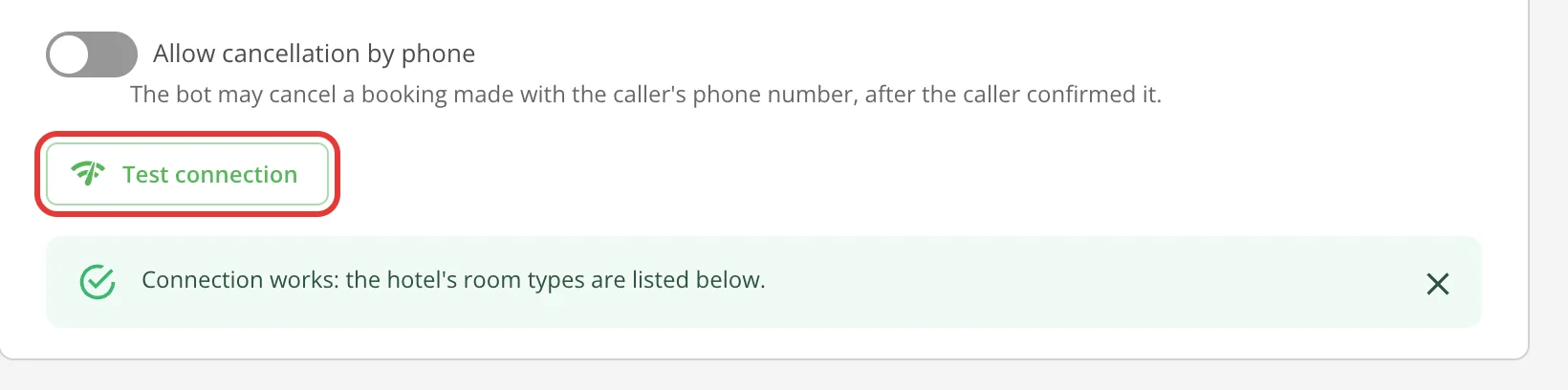
Test connection
3. Choose what the agent offers
- 1In the “What the bot offers” block click “Show the hotel's room types”: the room types from Servio appear with their IDs.
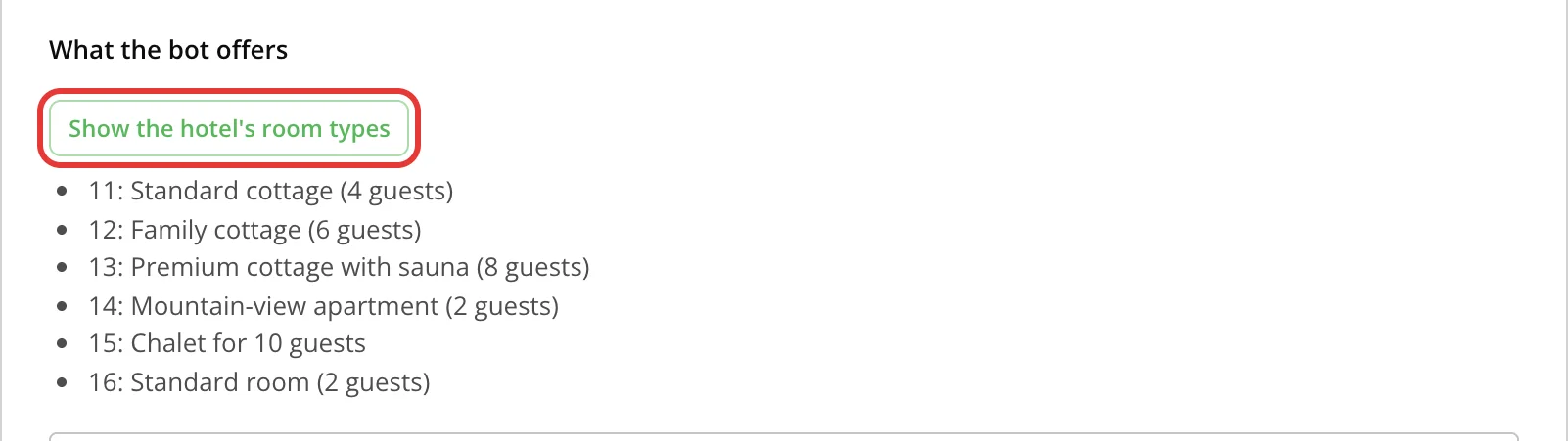
The hotel's room types - 2“Room type IDs”: comma-separated room types the agent may offer. Empty means all.
- 3“Room type names for the bot”: one per line, “ID: name”. The agent says these names instead of the names from Servio, for example “11: cottage for two”.
- 4“Price list IDs” limits the tariffs; “Hide non-refundable tariffs” removes them from the offers.
- 5“Adults from age”: the age from which a guest is booked as an adult (12 by default). Younger children are sent to Servio with their ages.
- 6“Use extra beds” and “Include tourist tax”: as in your price list. Servio calculates the price; the agent only says the total.
4. Turn on booking (optional)
While “Create bookings” is off, the agent only checks availability and prices. Make your test calls in this mode first.
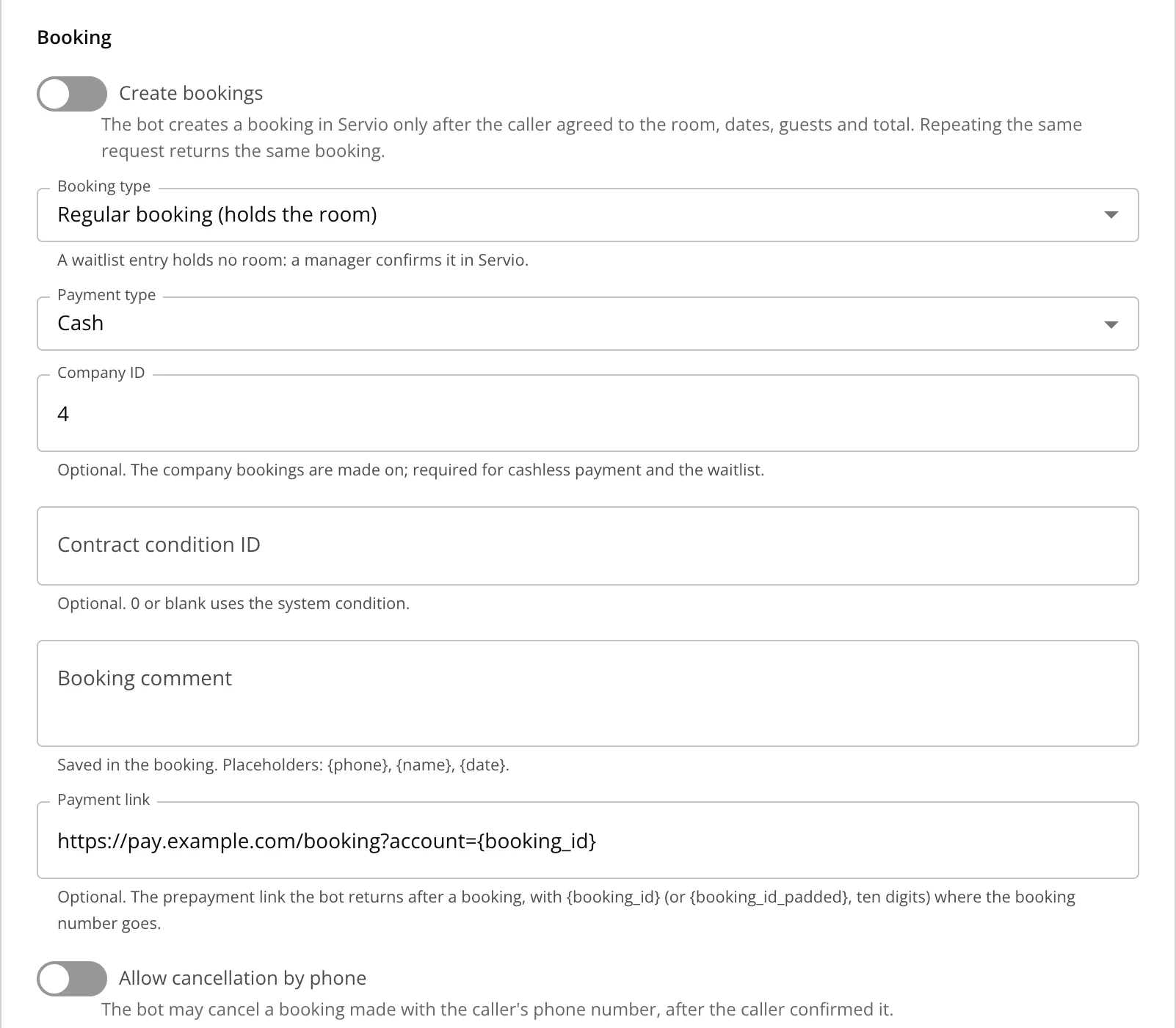
| Field | What it sets |
|---|---|
| Create bookings | The agent creates a booking in Servio once the caller has agreed to the room, dates, guests and total. Repeating the same request does not create a second booking. |
| Booking type | Regular: holds the room. Waitlist: the room is not held and a manager confirms the booking. |
| Payment type, Company ID, Contract condition ID | As in Servio. Cashless payment and the waitlist need the company ID. |
| Additional contract condition IDs | Comma-separated contract conditions whose tariffs the agent also offers: a hotel's room-only tariff often has its own condition. A booking is made under the chosen tariff's condition. Get the IDs from the hotel administrator or Servio support. |
| Booking comment | Text saved in the booking; placeholders {phone}, {name}, {date}. The agent adds the children's ages itself. |
| Payment link | The prepayment link the agent gets after a regular booking. The booking number replaces {booking_id}. The agent can send it by SMS if the campaign has an SMS tool. |
| Allow cancellation by phone | The agent may cancel a booking made from the caller's number after the caller confirms. Off by default. |
5. Add it to a campaign
- 1Campaign editor → the “AI tools” card → choose Servio HMS: all of its tools or only the selected ones.
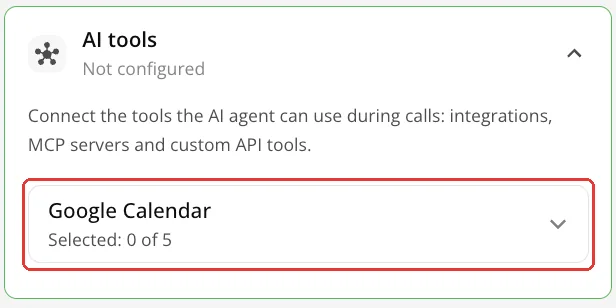
AI tools - 2Save the campaign.
| Tool | What it does |
|---|---|
| search_availability | Free room types and the total for the whole stay for the given dates, number of adults and children's ages. |
| suggest_dates | The nearest free dates when the chosen ones are full. |
| create_booking | Creates the booking; returns its number and the payment link. |
| get_booking, send_confirmation | The caller's booking status and the confirmation e-mail to the guest. |
| cancel_booking | Cancellation, only if allowed in the settings. |
Add the hotel's rules to the agent's instructions: book only after the guest clearly agrees and say the booking number, which room types to offer to whom (for example, only for guests aged 12 and over), whether to name the prices of individual services.
6. The booking number in your CRM
In the campaign's webhook body template, insert the tool's result: {{tools.servio_create_booking.booking_id?}} for the booking number, {{tools.servio_create_booking.payment_link?}} for the payment link. The ? leaves the field empty (null) when no booking was made in the call. More in the guide “Webhooks: call results”.
What next
- Webhooks: call results — tool results in the webhook template.
- Agent instructions — where to write the booking rules.
- Numbers and test call — check the scenarios before launch.