
Orders and leads: KeyCRM
- What you get:
- by the caller's number the agent sees their KeyCRM orders: status, items, total, delivery and tracking number. After the conversation it sets the order to “confirmed”, “declined” or “call back” and adds a summary for the manager. For an inbound enquiry without an order it creates a pipeline card. It checks stock by SKU.
- Before you start:
- a KeyCRM account where you can see the API key (it is shown to the account owner), project admin rights in Voice Agent and a “Voice Agent” campaign.
1. Copy the API key in KeyCRM
In KeyCRM open “Settings” → “General” and copy the key from the “API key” row. If there is no key yet, click “Generate API key”.
2. Connect the integration
- 1Left menu → “Integrations” → “Ready-made” → the “CRM” tab → the “KeyCRM” card → “Connect”.
- 2Paste the key into “API key” and click “Save”.
- 3Click “Test connection”. If everything is right, you will see “Connection works: the API key reads your order statuses.”, and the statuses and pipelines load into the form below.
3. Map call results to order statuses
In the “Orders after the call” block click “Load statuses from KeyCRM”: the fields become lists of your account's statuses. Until then you can type status IDs by hand.
| Field | What it sets |
|---|---|
| Let the agent change order statuses | The master switch. Off: the agent only reads orders and leaves comments, and the mapping below is kept. On by default. |
| Customer confirmed | The status the agent sets when the customer confirms the order. |
| Customer declined | The status for a refusal or cancellation. |
| Asked to call back | The status when the customer asks to be called later. |
| No answer | The status for a call where the customer never really talked. Set only by an after-call tool (see below). |
| Statuses the agent may change | Orders in other statuses (already shipped, paid) stay untouched. Empty: any status. Usually only “New” and “Awaiting confirmation”. |
4. Leads and the request limit
| Field | What it sets |
|---|---|
| Let the agent create leads | Off: the agent creates no pipeline cards, and the chosen pipeline is kept. |
| Pipeline for new leads | Where the agent creates a card for an enquiry without an order. Empty: the agent creates no leads. |
| Lead source | Optional. The KeyCRM source set on new cards. |
| Daily API request limit | KeyCRM allows 20 requests a minute per key, shared with your website and marketplaces. The agent uses at most 15 a minute and at most this many a day (5000 by default). |
Save the settings.
5. Add it to a campaign
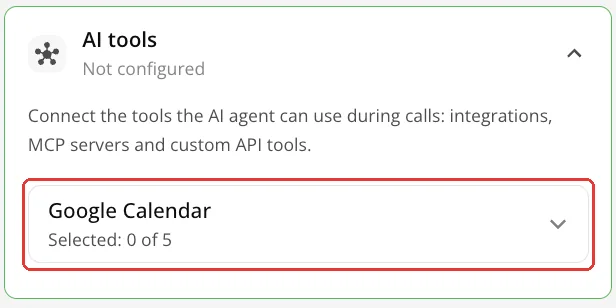
- 1Campaign editor → the “AI tools” card → choose KeyCRM: all of its tools or only the selected ones.
AI tools - 2Save the campaign.
| Tool | What it does |
|---|---|
| search_entities_by_phone | The buyer and their recent orders by the caller's number: status, items, total, delivery, tracking number. The agent calls it first. |
| get_order | Details of one of the caller's orders. The agent treats the manager's comment as an internal note and never reads it to the customer. |
| update_order_status | Sets the order status from the call result: confirmed, declined, callback or no_answer — only those with a status set. |
| add_order_comment | Adds a dated note marked Voice Agent for the manager. The existing comment is kept. |
| create_lead, update_lead | A pipeline card with the caller's phone, name, comment and items by SKU; moving it, a callback time, a note. |
| list_order_statuses, list_stages | Order statuses and pipeline statuses, so the agent never invents an ID. |
| check_stock | Whether an item is in stock by SKU: name, price and free quantity. |
Scenario 1. Confirming new orders
An outbound campaign calls the buyers of new orders. Upload the numbers as a CSV with the columns phone and order_id (you can add name, total) or through the API with customFields. The agent sees this data automatically in the customer details. Example instructions:
You are calling a buyer to confirm their online-shop order.
1. First call search_entities_by_phone and find the order with the customer's order_id.
2. Name the items, the total and the delivery method. Never read the internal comment.
3. Confirmed → update_order_status with outcome=confirmed and a short
   comment (address, delivery wishes).
4. Declined → ask why, update_order_status with outcome=declined
   and the reason in the comment.
5. Asks to call back → agree on a time, update_order_status
   with outcome=callback and the time in the comment.
Do not change the status until the customer has answered clearly.
Scenario 2. Refusals and “call me later”
The same campaign handles objections: if the customer hesitates over an item, the agent checks a replacement with check_stock and offers it. If the customer still refuses, the agent sets “Customer declined” and writes the reason in the comment so the manager sees it on the order. Example addition to the instructions:
If the customer wants another size or colour, run check_stock with the SKU
from the order and say what is in stock. Do not arrange the swap yourself:
add the wish with add_order_comment, a manager will call back.
Always write the reason for a refusal in the comment, in one sentence.Scenario 3. Inbound calls → leads
An inbound campaign on the shop's number. If the caller has an order, the agent answers about its status and tracking number. If there is no order and the caller is interested in a product, the agent creates a pipeline card. Example instructions:
First call search_entities_by_phone.
- There is an order → answer about its status, delivery and tracking number.
- No order and the caller wants to buy → ask their name, the product (SKU
  if they know it) and a good time for a manager's call. Create a lead with
  create_lead: a short title, a comment with their wishes, the products in items.
- The caller asks for a call at a specific time → update_lead
  with callback_at for the card you just created.
After the call instead of the agent
The status can be set not during the conversation but automatically after it, from the AI report. The agent then is not distracted by the CRM, and the status is set even if the customer hung up early.
- 1Campaign editor → the “Data extraction” card → “+ Add Field”: add an order_outcome field described as “confirmed if the customer confirmed the order; declined if they refused; callback if they asked to be called back; no_answer if there was no real conversation”, and a summary field for the conversation summary.
- 2Set the KeyCRM tools to run “After call” with template parameters. The campaign editor has no parameter fields yet, so this is done through the Voice Agent MCP server (voiceagent_set_campaign_integration_tools) or the API.
{ "projectID": 123, "campaignID": 456, "integrationId": "keycrm",
  "tools": [ "search_entities_by_phone", "get_order", "check_stock", "add_order_comment",
  { "name": "update_order_status", "usageTiming": "afterCall",
    "parameters": { "order_id": "${custom_fields.order_id}",
                    "outcome": "${report.detailed.order_outcome}",
                    "comment": "${report.detailed.summary|}" } } ] }
Replace 123 and 456 with your project and campaign IDs. List in tools every KeyCRM tool the campaign should keep: tools missing from the list are detached. A bare name (like search_entities_by_phone) keeps the tool available during the conversation. If the number has no order_id or the report has no order_outcome, the tool does not run and the order is not changed. A second run for the same call does not duplicate the status or the comment.
Results in the webhook
In the campaign's webhook body template you can pass tool results: {{tools.keycrm_create_lead.lead_id?}} — the ID of the created card, {{tools.keycrm_update_order_status.status_id?}} — the status set. The ? means the field is null if the tool was not called in the conversation.
What next
- Agent instructions — where to write the conversation script.
- Numbers and test call — a CSV with order_id and checks before launch.
- Webhooks: call results — tool results in your own system.