~5 min · Test the agent in the browser and upload your number list.
What you get:
a tested agent and a campaign that calls your number list.
Before you start:
a “Voice Agent” campaign. For calls to phone numbers, a connected SIP account.
1. Test the agent
Test the agent before uploading the real list. The test runs in the browser through the microphone, needs no SIP account and spends no units. A headset gives cleaner sound.
1
In the campaign editor save your changes and click “Bot test”. The call starts automatically.“Bot test” buttonWhile there are unsaved changes, the button is inactive. If the campaign has an unpublished draft, choose what to test (“Draft” or “Live”) and click “Run test”.
2
Talk to the agent as a customer. The conversation transcript appears in the test window.
3
Check whether the agent follows the instructions. If not, fix the instruction blocks, save and repeat the test.
One test lasts up to 30 minutes. Prepare a list of situations to check in advance: objections, questions about the price, requests to call back.
2. Upload numbers
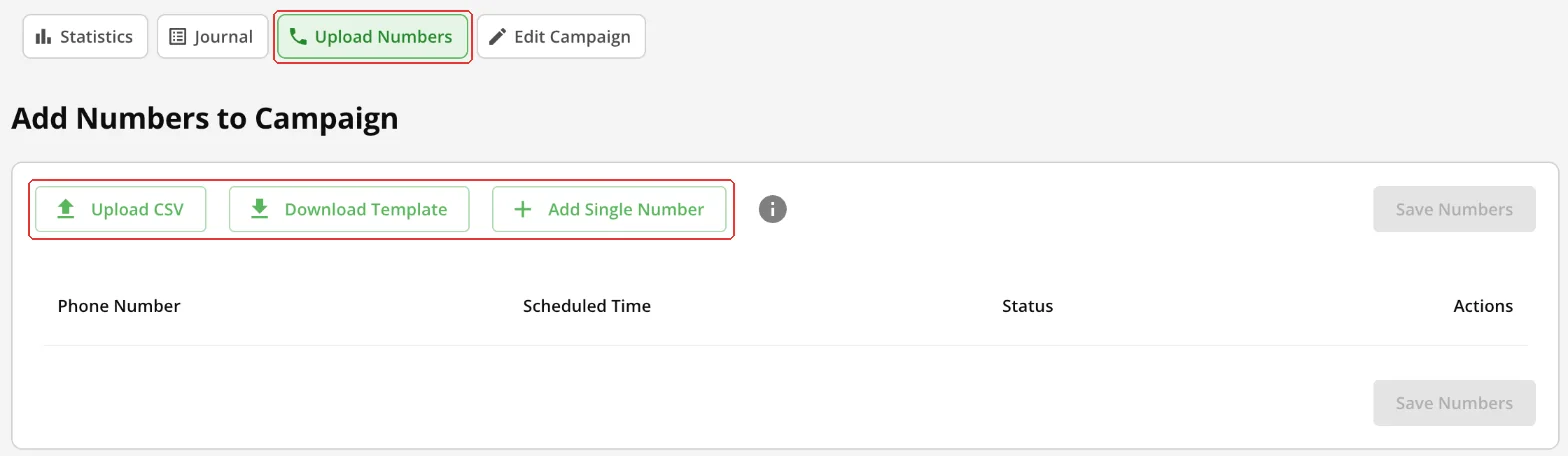
Open the “Upload Numbers” tab in the campaign.
“Upload Numbers” tab
Method
How
CSV file
“Upload CSV” and choose the file: the numbers are saved at once. The phone column is required. The optional scheduledTime column in YYYY-MM-DD HH:mm:ss format (campaign time) schedules a call for a specific time. Other columns become variables you can insert into the campaign text. “Download Template” gives you a sample file.
Single number
“Add Single Number” → the number in international format (+44XXXXXXXXXX) → “Call ASAP” or “Scheduled Time” → “Add”. Save numbers added this way with the “Save Numbers” button.
“Save Numbers” button
After saving, “Statistics” opens. Each number and its status are shown in the “Journal” tab. An active campaign calls on the schedule from “Call settings”.