
Web calls: talking to the agent on your site
- What you get:
- visitors of your site talk to the campaign's agent through the microphone in the browser, with no phone number. The conversation lands in the campaign's call log marked “Web call”; the report, webhook and Telegram work as for phone calls.
- Before you start:
- a “Voice Agent” campaign with a realtime AI model, project admin rights and access to your site's code (one line for the widget).
1. Turn web calls on in the campaign
- 1Campaign editor → the “Web calls” block → “Let visitors talk to the agent in the browser”.
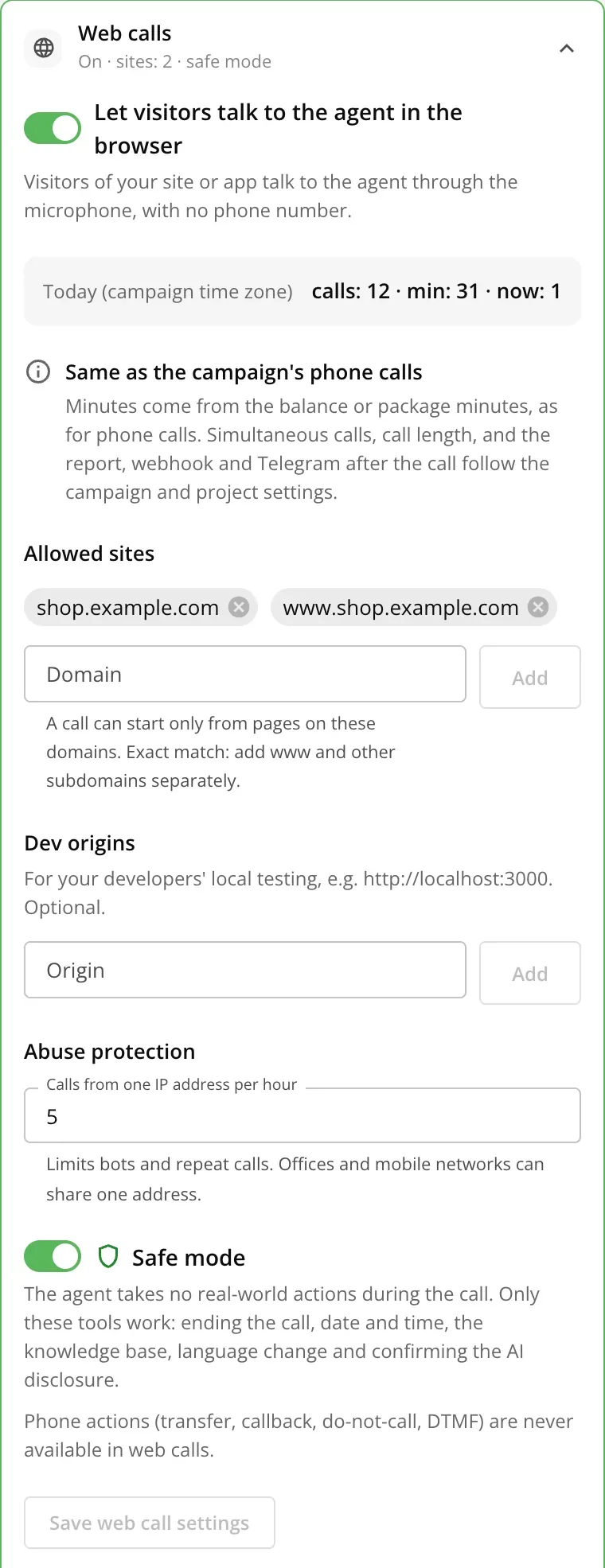
The Web calls block - 2Under “Allowed sites”, add the domains a conversation may start from, e.g. shop.example.com. The match is exact: add www.shop.example.com as a separate line.
- 3If needed, change “Calls from one IP address per hour” (5 by default).
- 4Keep “Safe mode” on: visitors are anonymous, and in this mode the agent books nothing in calendars and calls no APIs, even if they are added to the campaign.
- 5Click “Save web call settings”.
Minutes are charged to the balance or package as for the campaign's phone calls. Simultaneous calls and call duration also follow the campaign and project settings. Phone actions (transfer, callback, “do not call”, tones) are never available in web calls.
2. Option A: a one-line widget
The simplest way: a “Talk to the agent” button appears in a corner of the page, and our script does the rest.
- 1In the “Web calls” block → “Connection”, open the “Widget” tab and click “Create a widget key”.
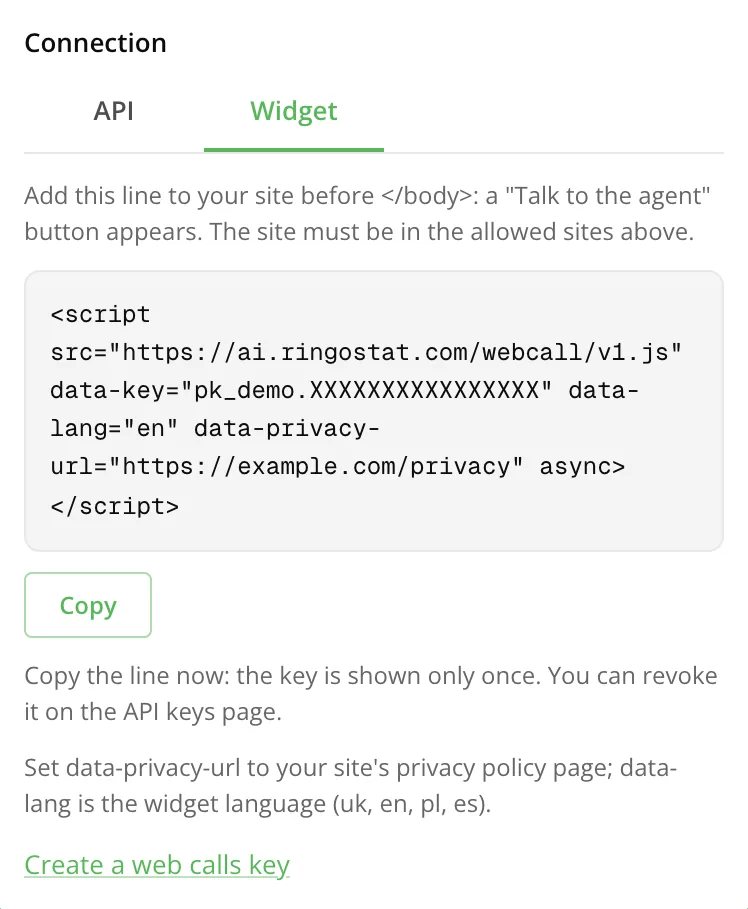
The Widget tab - 2Copy the line with “Copy”. The key is shown only once.
- 3Put your site's privacy policy page into data-privacy-url.
- 4Paste the line into your site's pages before </body>.
<script src="https://ai.ringostat.com/webcall/v1.js"
        data-key="<WIDGET_KEY>"
        data-privacy-url="/privacy"
data-lang="en" async></script>| Attribute | What it sets |
|---|---|
| data-key | The widget key. Required. |
| data-privacy-url | Your site's privacy policy; a relative address (/privacy) works. Required: without it no button is shown. |
| data-lang | Language of the button and texts: uk, en, pl or es. Without it, the page's language (<html lang>), else English. |
| data-position | right (default) or left: the page corner for the button. |
| data-color | Button colour, e.g. #16c07f (3, 4, 6 or 8 hex digits). |
| data-container | A CSS selector, e.g. #talk: the button goes into that element instead of the page corner. If the element appears later (an SPA), the widget waits for it up to 10 seconds; an invalid selector puts the button in the corner with a console warning. |
| data-auto="false" | No button of ours: you start the conversation from your own (see below). |
Under the button the visitor always sees “You are talking to an AI agent, not a person. The call is recorded.” with a link to your policy. A click opens a panel with the same notices; the conversation starts only from the panel's button, after the microphone is allowed.
Site requirements
The button shows only where the browser can give a microphone: an HTTPS page, a browser with navigator.mediaDevices, and in an iframe the allow="microphone" attribute. Otherwise there is no button and one console warning prefixed [Ringostat]. In-app browsers (Instagram, Telegram) may have no microphone: the widget then says to open the page in Safari or Chrome.
Content-Security-Policy: allow script-src https://ai.ringostat.com and connect-src https://apiagent.ringostat.com wss://apiagent.ringostat.com. No style-src 'unsafe-inline' is needed: the widget's styles are adoptedStyleSheets (browsers without them get a style tag, which needs 'unsafe-inline').
SPAs and page builders: when the framework re-renders the page, the widget comes back on its own. To show or remove it from code, call RingostatWebCall.mount() and RingostatWebCall.unmount() (unmount ends a call). mount({ container: "#talk" }) takes the same settings as the data attributes, without the data- prefix. In Google Tag Manager, paste the line as is into a Custom HTML tag.
How the widget gets its token
A widget key needs no server of yours: the browser sends it to POST /web-call/widget-ticket itself. The request is accepted only from a page of an allowed site (the Origin header), without cookies; the body is up to 8 KB with only key and metadata. One IP address may send up to 20 requests a minute. The answer is the same token as from webCall.create, or an error with a code from the table below and a Retry-After header.
POST https://apiagent.ringostat.com/web-call/widget-ticket
Origin: https://shop.example.com
Content-Type: application/json

{ "key":"<WIDGET_KEY>", "metadata":{ "page":"https://shop.example.com/pricing" } }

→ 200 { "ok":true, "ticket":{ "token":"wct1.…", "wsUrl":"wss://apiagent.ringostat.com/ws/web-call",
        "expiresIn":20, "maxDurationSec":180, "callId":"…" } }
→ 403 { "ok":false, "error":{ "code":"origin_not_allowed", "message":"…" } }
Your own button instead of ours
With data-auto="false" the script shows no button and gives you the RingostatWebCall object. A conversation can start only inside the user's click: otherwise the browser will not give the microphone. Show the AI agent and recording notices with the policy link yourself, next to your button.
<script src="https://ai.ringostat.com/webcall/v1.js"
        data-key="<WIDGET_KEY>" data-auto="false"></script>
<script>
  const call = RingostatWebCall.create({ key: "<WIDGET_KEY>" });
  call.on("state", (s) => console.log(s.status));      // connecting → live → ended
  call.on("transcript", (t) => console.log(t.role, t.text));
  call.on("end", (e) => console.log(e.reason, e.code)); // code: when it is an error
  talkButton.onclick = () => call.start().catch((err) => console.log(err.code));
  stopButton.onclick = () => call.stop();
  muteButton.onclick = () => call.setMuted(true);
</script>
One object is one conversation: create a new one with RingostatWebCall.create for the next.
3. Option B: through your server (API)
For sites and apps that decide themselves who gets a conversation: signed-in customers only, after a captcha and so on. Your server gets a one-time token with webCall.create and hands it to the browser.
- 1Create a “Web calls only” key: “Settings” → “Advanced settings” → “+ Generate New Key” → key access “Web calls only”, optionally with campaigns. Such a key can only call webCall.create; keep it on your server and never put it into a page.
- 2When the visitor clicked your button and allowed the microphone, the browser asks your server for a token.
- 3The server calls webCall.create with the visitor's IP address and returns token and wsUrl to the browser. The token lives 20 seconds and works once.
- 4The browser connects to wsUrl with this token and the conversation starts.
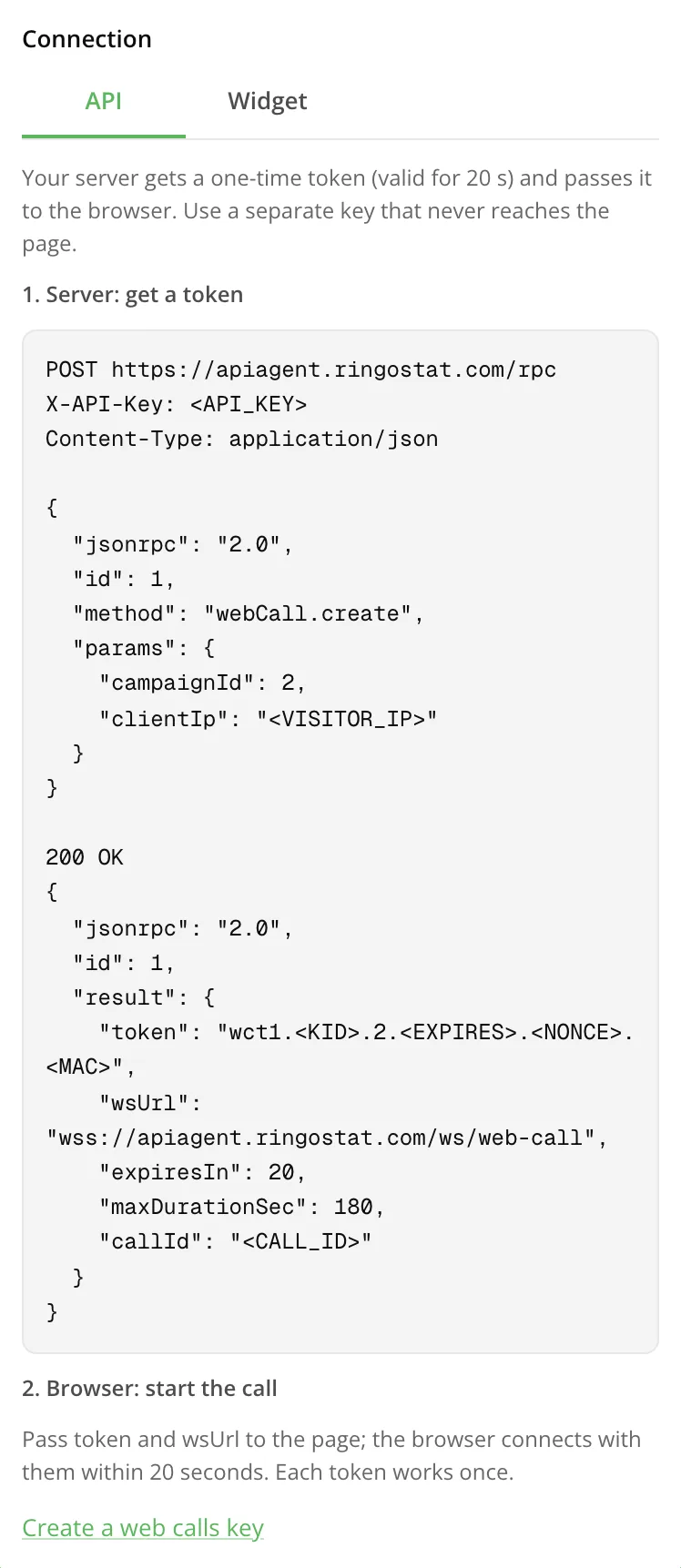
POST https://apiagent.ringostat.com/rpc
X-API-Key: <WEB_CALLS_KEY>
Content-Type: application/json

{ "jsonrpc":"2.0", "id":1, "method":"webCall.create",
  "params":{ "campaignId":799, "clientIp":"203.0.113.7",
    "externalId":"order-1842",
    "metadata":{ "page":"https://shop.example.com/pricing", "utm_source":"google" } } }

→ "result": { "token":"wct1.…", "wsUrl":"wss://apiagent.ringostat.com/ws/web-call",
"expiresIn":20, "maxDurationSec":180, "callId":"…" }| Parameter | What it is |
|---|---|
| campaignId | ID of a campaign with web calls on. Required. |
| clientIp | The visitor's public IP address as your server sees it. Required: the hourly per-IP limit counts by it. Private and local addresses are refused. |
| externalId | Your own ID (up to 128 characters) to tie the conversation to your data. |
| metadata | Only the keys page, utm_source, utm_medium, utm_campaign, utm_term, utm_content and source, string values. The agent never sees them; page is stored without the query and #. |
In the browser, the same script runs the conversation: pass getTicket instead of a widget key, a function that asks your server for the token. The script asks for the microphone first, then calls getTicket and connects.
<script src="https://ai.ringostat.com/webcall/v1.js" data-auto="false"></script>
<script>
  const call = RingostatWebCall.create({
    // your endpoint: it checks the visitor and calls webCall.create
    getTicket: () => fetch("/api/web-call-token", { method: "POST" }).then((r) => r.json()),
  });
  talkButton.onclick = () => call.start(); // events and stop: as in the example above
</script>
Without the SDK: open a WebSocket to wsUrl with two subprotocols: ringostat-web.v1 and token.<token>. Send the microphone as {"type":"audio","data":<base64>}: PCM16 mono 48 kHz in 20–40 ms frames; end the conversation with {"type":"stop"}. The server sends audio (same format), state, transcript_ai and transcript_user, and end with the reason at the end.
Errors
| Code | What it means | What to do |
|---|---|---|
| origin_not_allowed | The page is not on an allowed site (widget). | Add the domain to “Allowed sites”, www separately. |
| web_calls_disabled | Web calls are off in the campaign. | Turn them on in the “Web calls” block. |
| busy | All simultaneous calls of the campaign or project are taken. | Retry after Retry-After seconds; raise simultaneous calls if needed. |
| rate_limited | The per-IP or request limit is used up. | Wait retry_after_seconds or raise the per-IP limit. |
| insufficient_funds | The project has no funds for a call. | Top up the balance or package. |
| not_found | No such campaign, it belongs to another project, or the key is not bound to it. | Check campaignId and the key's campaigns. |
| unavailable | Web calls will not start right now: the reason is under the switch in the block. | See the reason in the cabinet. |
| mic_denied | The visitor did not allow the microphone (browser only). | Ask to allow the microphone for the site and try again. |
| mic_not_found | No microphone, or another app holds it. | Connect a microphone or close the app that uses it. |
| mic_unsupported | The browser gives pages no microphone (an in-app or old browser). | Open the page in Safari or Chrome. |
webCall.create returns the code in error.data.code with the matching HTTP status; the widget shows the visitor a short plain text instead of the code.
How to switch off
Turn off “Let visitors talk to the agent in the browser” in the campaign or delete the key: new conversations will not start, live ones end.
What next
- Web calls: your own interface with the SDK — your own button and animation, SPA, Tilda, WordPress, GTM.
- API and webhooks — web call results into your CRM.
- /rpc methods with examples — webCall.create among the other methods.