
Telegram reports
- What you get:
- call reports in Telegram, in your own chat or a team chat: the result, a conversation summary and the extracted data.
- Before you start:
- a Telegram account; for a group, the right to add a bot to the chat.
1. Connect a destination
- 1Left menu → “Integrations” → “Ready-made” → the “Telegram” card → “Configure”. The “Telegram Reports” page opens.

Telegram card in ready-made integrations - 2Click “+ Connect destination”.

“Telegram Reports” page - 3Choose where to send reports: “Personal” (a private chat with the bot) or “Group” (a shared chat).
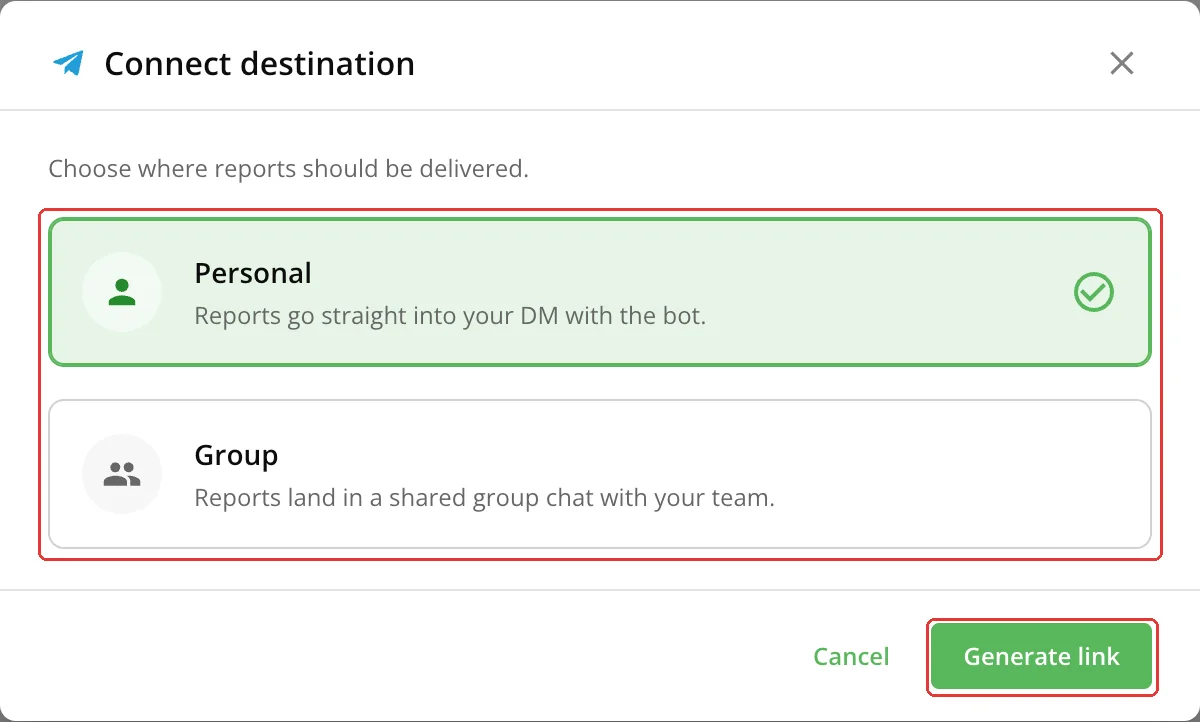
Choosing a destination - 4Click “Generate link”. The link is single-use and valid for 60 minutes.
- 5Personal chat: open the bot from the link and press Start. Group: add the bot to the group and send the command the dashboard shows (/link …) there.
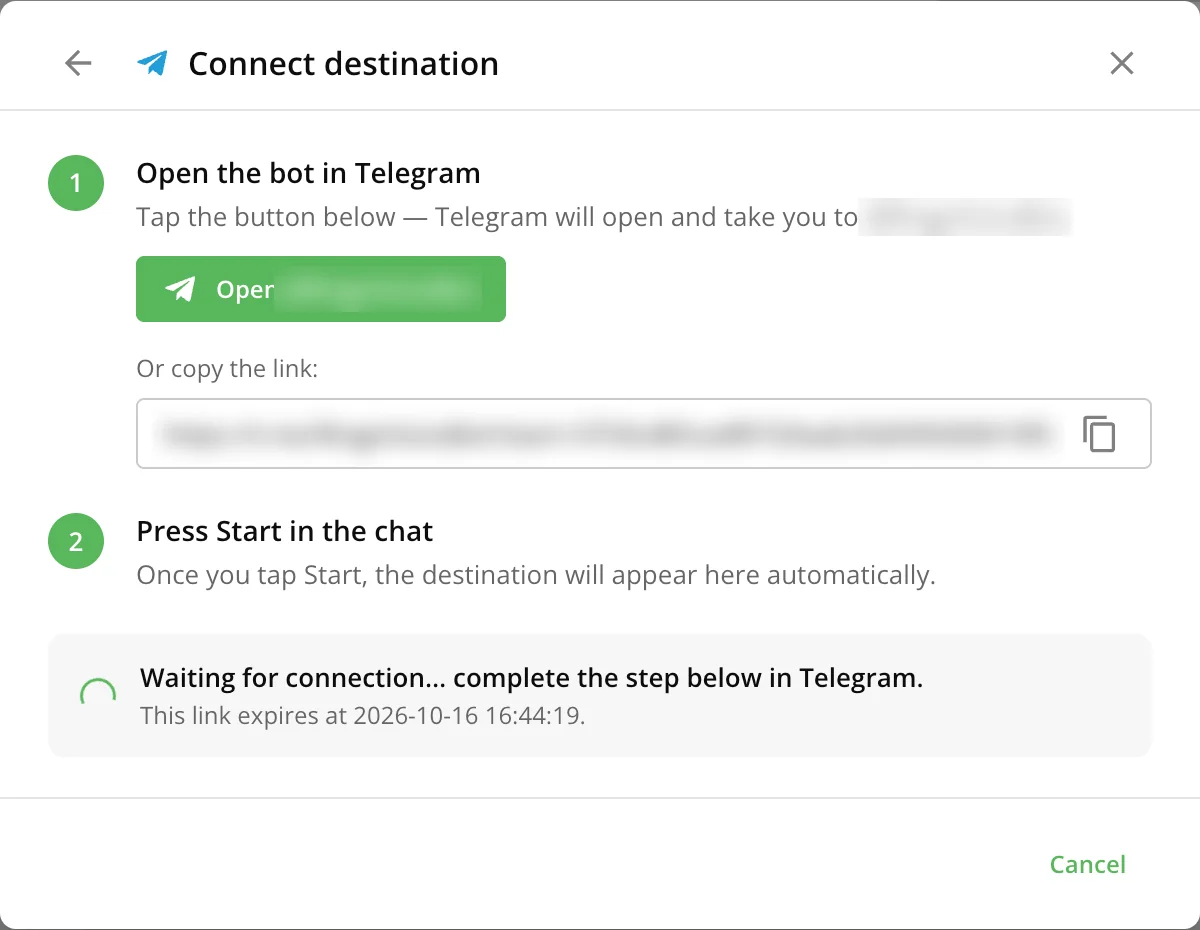
Link to the bot
The dashboard detects the connection by itself and adds the destination to the list. Nothing else needs confirming.
You can also connect a destination from the campaign editor: the “Webhook and reports” card → “Telegram Report Delivery” → “Connect destination” (the button is shown while there are no destinations).
2. Check delivery
Next to the destination click the paper plane icon (“Send test report”) and make sure the report arrives.

3. Connect to a campaign
- 1Campaign editor → the “Webhook and reports” card → “Telegram Report Delivery”.
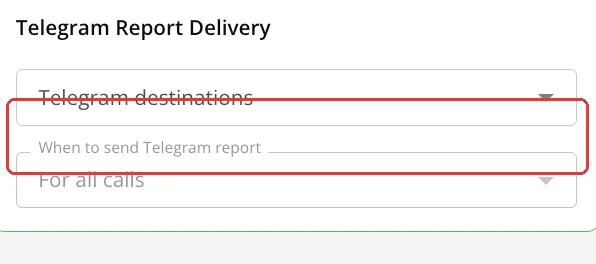
Telegram in a campaign - 2Choose destinations in the “Telegram destinations” field.
- 3In the “When to send Telegram report” field choose which calls to report, for example “For all calls”.
- 4Save the campaign.
The report contains the call result, a summary and the extracted fields, plus the meeting booking, DTMF answers, voicemail and call time, if there are any. The full conversation transcript is not in Telegram: it is in the call details in the dashboard.
4. Split reports between groups
If different calls should go to different chats, set up routes. For example, a request from Obolon goes to the Obolon technician, and a request without a district goes to a shared group. A route is groups plus a condition: the report goes to the groups of every route whose condition matches.
- 1Prepare a report field: campaign editor → the “Data extraction” card → “Add Field”, for example district, type “Text”. List the options in “Allowed values” (for example, 10 districts). The agent picks one of the values or “unknown”.
- 2Describe synonyms and landmarks in the field description, for example: “Borshchahivka, Shuliavska metro → Solomianskyi”. If a landmark is ambiguous, tell the agent in its instructions to ask for the street.
- 3The “Webhook and reports” card → “Telegram Report Delivery” → “Report routing by group” → “Add route”. Set the name, the groups and the condition: report field, “equals”, a value from the list.
- 4In “Otherwise: groups when no route matches” choose the shared group. Reports without a district, with “unknown” or from another city go there.
- 5In “Check where a report goes” press “Check”: it uses the campaign's latest call or a test JSON. Nothing is sent.
- 6Save the campaign.
| Situation | What happens |
|---|---|
| Several routes match | The report goes to all of them. In “When several routes match” you can choose “Only to the first one in order”. |
| A group is in several routes | It gets the report once. |
| A route without conditions | Its condition always matches. In “Only to the first one in order” mode it gets a report only when no route above it matched. |
| “When to send Telegram report” | Works as before: it decides whether a report is sent at all. Routes decide where. |
| Telegram is temporarily unavailable | The report is resent until it arrives (for up to a day). |
Managing destinations
| Action | How |
|---|---|
| Pause reports temporarily | Turn off the “Active” switch. |
| Disconnect a destination | The trash icon (“Disconnect”). |
What next
- API and webhooks — to pass the same data to a CRM or another system.