
Managing campaigns
~4 min · Statuses, call counters and quick actions on the campaigns dashboard.
- What you get:
- the state of all campaigns in one place: statuses, call counters, quick actions.
- Before you start:
- at least one campaign.
Campaigns dashboard
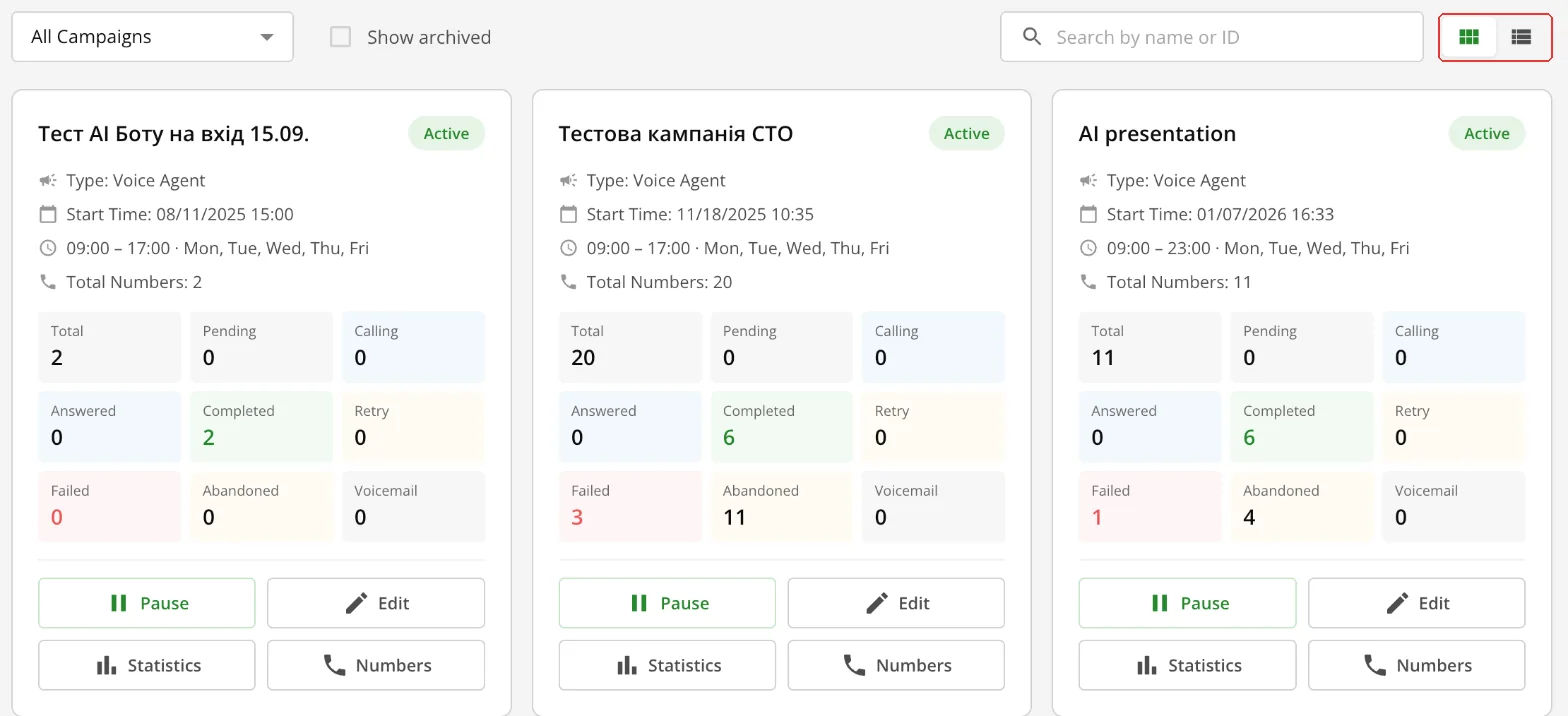
Above the campaigns are a status filter, the “Show archived” checkbox (without it archived campaigns are hidden) and search by name or ID. To the right of the search is the view switch: “Tiles” or “List”. It changes only the display.
| View | What it shows | When it is handy |
|---|---|---|
| “Tiles” | Type, start time, schedule, number count and all counters: Total, Pending, Calling, Answered, Completed, Retry, Failed, Abandoned, Voicemail. | When you need a detailed view of several campaigns. |
| “List” | One row per campaign: campaign number, name, status, type, schedule and the Total, Answered, Completed and Failed counters. | When there are many campaigns. |
The list has no “Pending”, “Calling”, “Retry”, “Abandoned” and “Voicemail” counters. To see them, switch to tiles or open “Statistics”.
Campaign statuses
- “Active” — the campaign calls on schedule.
- “Paused” — calls are stopped, the settings are kept.
- “No endpoint selected” — the campaign is active but has no SIP account, so it can't call phone numbers.
- “Archived” — the badge of an archived campaign. Such campaigns are shown with the “Show archived” checkbox.
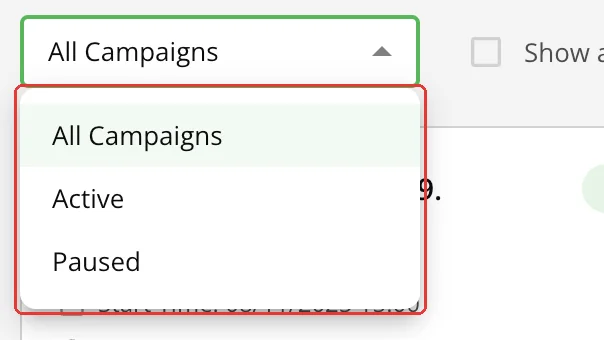
The filter above the dashboard shows all campaigns, only active ones or only paused ones.
Campaign actions
| Tiles | List |
|---|---|
 |  |
| Button | What it does |
|---|---|
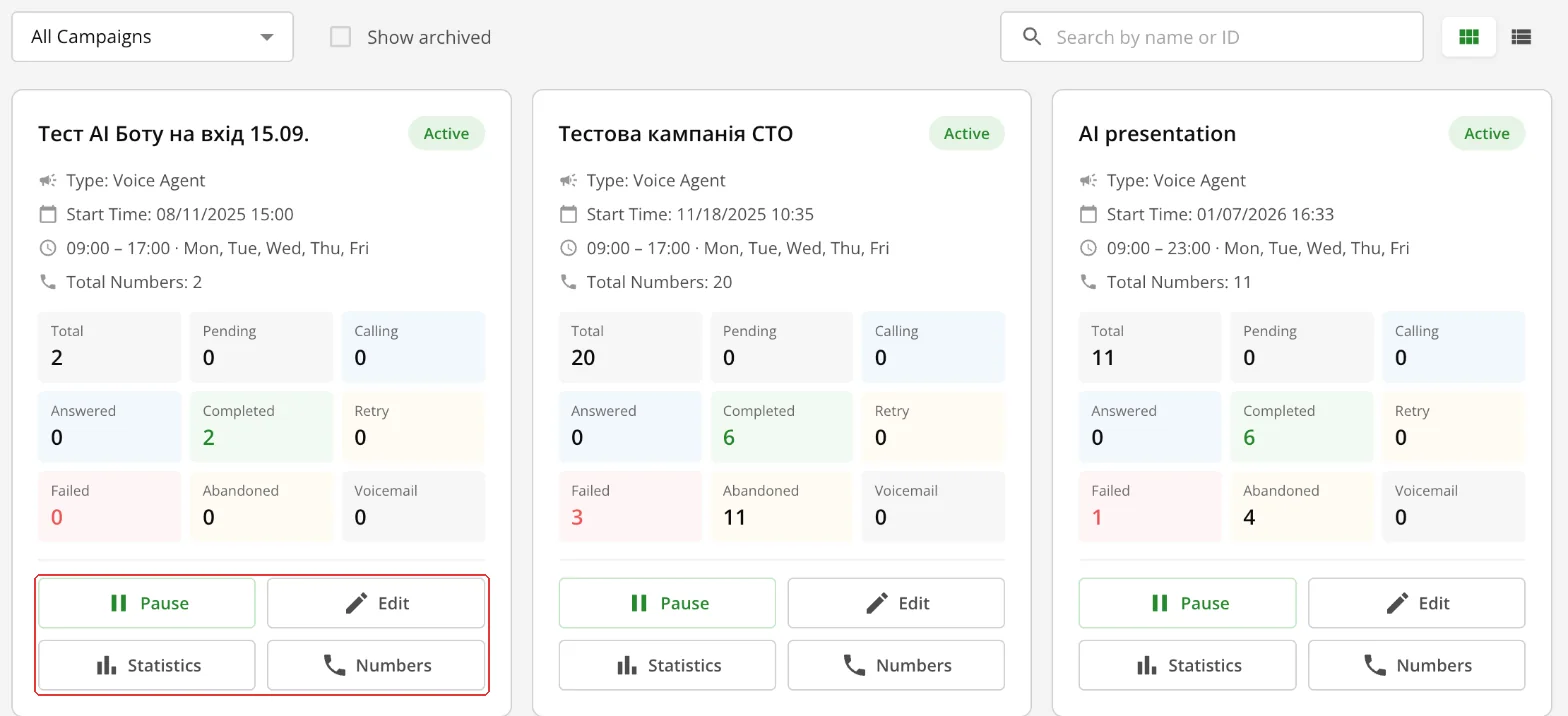
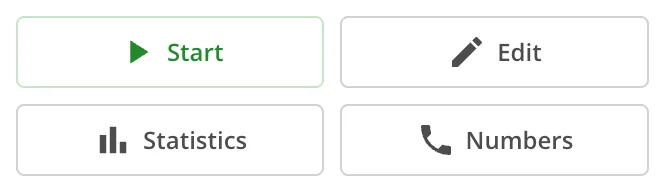
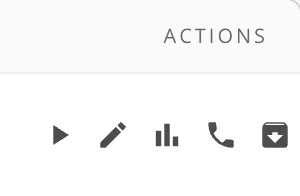
| “Pause” / “Start” | Stops or resumes calls without losing the settings. In the list these are icons with the “Pause Campaign” and “Resume Campaign” tooltips. |
| “Edit” | Opens the campaign editor. |
| “Statistics” | Detailed call results. |
| “Numbers” | Opens “Upload Numbers” to add numbers. Each number's status is in the “Journal” tab. |
| “Archive campaign” | For a paused campaign. An archived campaign disappears from the dashboard; it is shown with the “Show archived” checkbox. |
| “Clone Campaign” | A button above the campaign editor. Creates a new campaign with the same instructions and most of the settings, but without numbers and knowledge bases. |
After cloning, connect the knowledge bases to the new campaign, turn on “Knowledge Base Integration (RAG)” and choose your custom API tools again in “AI tools”. Otherwise the agent won't know the prices and terms.
What next
- Telegram reports — see results without opening the dashboard.